Build agents in the Agent Designer
The Agent Designer is Kionga's native visual agent builder. You draw a graph of typed components, run it in a playground with a node-by-node trace, check it against regression test cases, and publish an immutable version that runs and deploys without the editor.
Graphs are data, not code. Each node is a registered component that the
isolated designer runner (part of agent-runtime) interprets. Graphs store
the IDs of Kionga resources such as models, knowledge bases and API connections,
never their credentials. Kionga checks your project access on every resource
call.
Before you begin
- You need the
agentsservice and access to the project. Viewers can open designs but cannot change or run them. - The playground and evaluations need the designer runner. The local stack
(
make local-up) starts it asagent-designer-runner. If it is missing, Run reports The agent designer runner is not configured. - Without provider keys, the stack uses the deterministic
mockchat model. To use a real model, setMLAIOPS_LLM_BACKENDand the provider key (see Build agents). Model calls go out through the trace-proxy.
1. Build a prompt → model → output agent
- Open Agents → Agent designer.
- Choose New design, then a project.
- Add a Prompt node and set its template to
Answer briefly: {input}. - Add a Model node. Platform chat model (
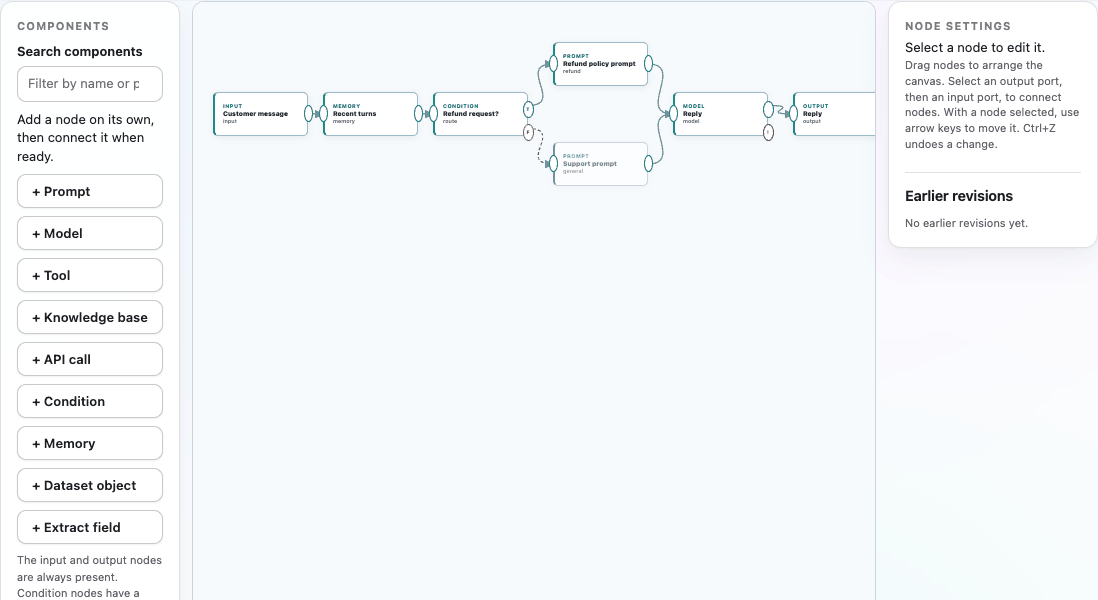
llm) uses the runtime's configured model. A Kionga model ID calls that deployed model instead. - Connect Input → Prompt → Model → Output. Select a node's output port (on its right edge), then the next node's input port.
- Select Validate. The Validation tab lists any errors, and badges appear on the affected nodes. Select Show node to jump to one.
- Select Save revision.
Templates can use these placeholders:
| Placeholder | Value |
|---|---|
{input} |
The user's message. |
{context} |
Every value flowing into the node, joined by blank lines. |
{node-id} |
The output of one upstream node, for example {retrieve}. |
Substitution happens once and is literal. Text from a user or a tool is never scanned again for placeholders.
2. Build a RAG assistant with a knowledge base and RustFS
- Under Start from, choose RAG assistant.
- On the Search knowledge node, choose a knowledge base. The list shows only
the bases in your project. Queries are embedded with the SDK
HashingEmbedderat the base's dimensions, so add chunks with the sameHashingEmbedder. - To ground the answer in a file instead, use the Dataset-grounded answer template. Pick a project dataset and an object key. Kionga reads the object from RustFS and keeps the read inside the prefix of the dataset.
- Save, then ask a question in the Playground. Expand the knowledge node's row in Run trace to see the retrieved text.
3. Build a tool-using agent with managed API credentials
- An administrator registers an API connection for the project. The connection
holds an endpoint and an
env:credential reference; the secret stays on the gateway. - Start from API lookup, or add an API call node and choose the
connection. The request template is rendered and sent as JSON. For example,
{"query": "{input}"}is sent as is, and text that is not JSON is sent as{"input": ...}. - Kionga tool nodes invoke a registered tool's serverless function in the same way.
- Tool and API calls can change external systems. In the playground, select
Allow tools and API calls that change external systems before you run.
Without it, the node fails with
side_effects_not_approvedand Kionga makes no call.
4. Debug a failed node and inspect its trace
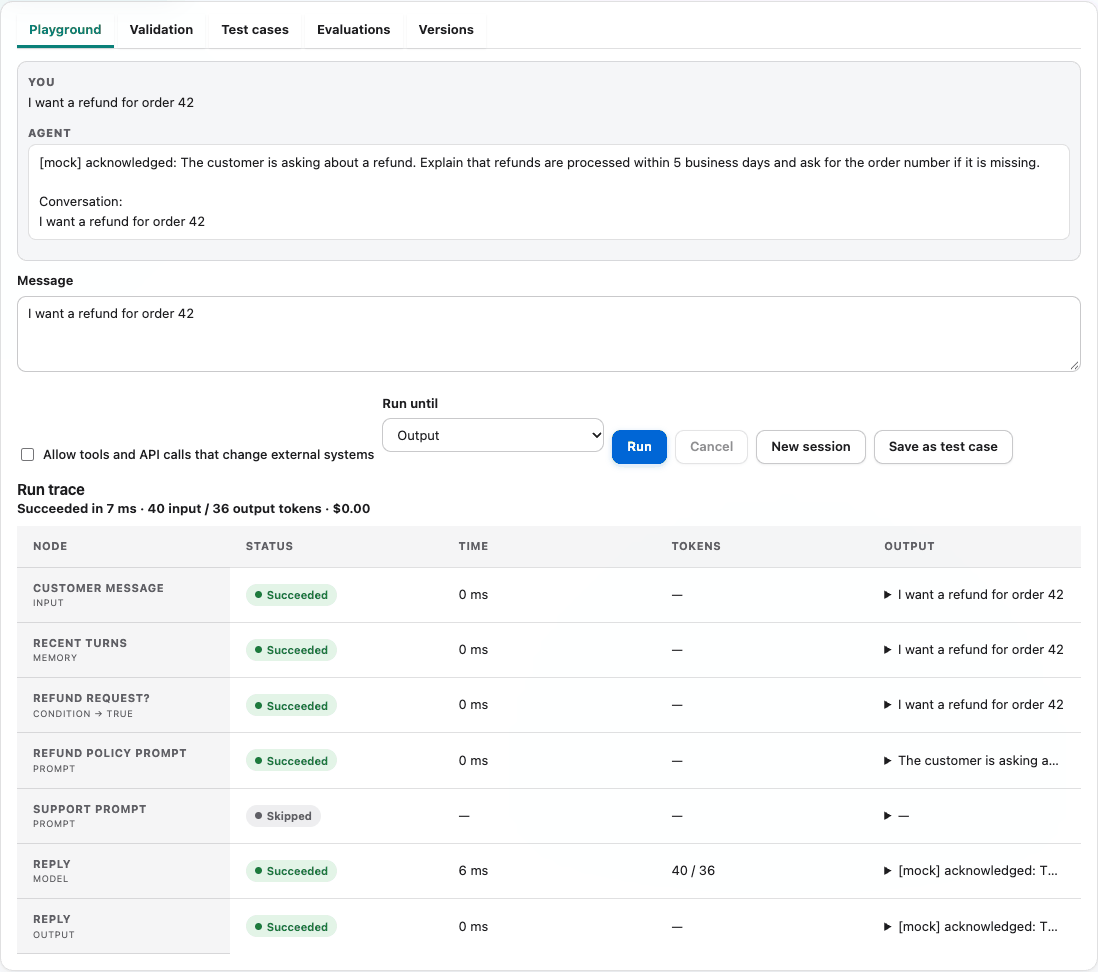
Each run streams events into Run trace. A row shows a node's status, how long it took, its tokens, and its redacted input and output. Kionga masks bearer tokens, keys, passwords and similar values in these previews before they leave the runner.
| Error code | Meaning | What to do |
|---|---|---|
resource_denied |
Kionga refused the resource call (401, 403 or 404). | Check that the resource is still in the project and that your access is current. A revoked grant stops the next call, even in a running graph. |
resource_unavailable |
The backend or endpoint did not answer. | Retry. Nodes with a retry budget retry automatically. |
side_effects_not_approved |
A tool or API node ran without approval. | Allow side effects for the run. |
timeout |
A node exceeded its timeout, or the run exceeded timeout_seconds. |
Raise the run limit, or simplify the node. |
budget_exceeded |
The run went over max_steps or max_tokens, or the runner is at capacity. |
Raise the budget, or wait and run again. |
invalid_graph |
A setting is missing or invalid at run time. | Select Validate. |
To isolate a node, select it and choose Test up to this node. Kionga runs the node and everything upstream of it, then stops. Cancel stops a running graph, and its run credential stops working at once. Previous runs are listed under the design (the newest 50 are kept).
Condition nodes route to a T (true) or F (false) branch. Only the
selected branch runs; nodes on the other branch show as skipped. A condition
is operator:argument: contains:refund, not_contains:, equals:,
matches:<regex>, longer_than:<n>, empty or not_empty.
Add a fallback for a failing node
Model, tool, API call, knowledge base and dataset nodes have a second output port marked !. Connect it to a fallback, such as a prompt that apologizes, or a different model. When the node fails because a resource denied access, was unavailable, timed out or raised an error, the run sends the redacted failure message down that branch and continues. Nodes connected only to the normal output are skipped. Approval refusals, budget limits and cancellation still end the run.
To use one field of a JSON result, such as result.items.0.name, add an
Extract field node after the tool or API call.
Route, branch in parallel and join
- A Router checks up to four conditions in order and sends the value to the first route that matches, or to D (default). Only that branch runs.
- Nodes whose inputs are ready run at the same time, so two knowledge searches
that don't depend on each other overlap. A Join waits for every upstream
branch and combines their results into one JSON object keyed by node ID. Set
Branches required to
allto fail when a branch was skipped.
Reuse published agents: subflow, map and bounded loop
These three nodes run a published version of another design as one step. The version ID pins it, so later edits to that design never change your flow.
- Subflow runs the version once and uses its reply. The Multi-agent handoff template routes each request to a specialist subflow.
- Map runs it once per item of a JSON list, or per line of text, up to 4 at a time and 20 items, and returns the list of replies in order.
- Bounded loop feeds each reply back in until Stop when matches (the
→port) or the iteration limit is reached (the E port).
Nested runs share the parent's step, token and time budget and its side-effect approval. Flows can nest 3 levels deep, using at most 10 versions per run.
Require a human approval
A Human approval node pauses the run and shows its request message (rendered
with {input}, {context} or {node-id}). In the playground the request
appears in the chat with Approve and Reject. Anyone in the project with
agents write access can decide it from there, or through
/api/v1/agent-approvals, including for deployed agents. The value continues
through ✓ (approved) or ✗ (rejected). A request nobody decides within
its timeout (at most 290 seconds) goes to ✗. The Human approval template
holds a drafted reply until someone approves it.
Watch the reply stream
Model nodes stream their reply into the playground token by token. The final
reply replaces the streamed text when the run finishes. Deployed agents stream
through /stream as well, but only from model nodes connected straight to the
output, so intermediate drafts never reach users.
5. Use templates, groups and revisions
- Start from opens a template as a new, unsaved design. Import loads a graph that was exported with Export JSON.
- To organize a large canvas, give nodes a Group label. Groups are visual only. Use Fit, the zoom buttons and the Overview map to navigate, and Search components to find a node type. Snap to grid aligns moved nodes.
- Shift-click to select several nodes, then drag or use the arrow keys to move them together. Ctrl+C and Ctrl+V copy them with the connections between them, and Delete removes them. Undo and Redo (Ctrl+Z / Ctrl+Shift+Z) cover graph edits.
- Every save creates a revision. If someone else saved first, your save is rejected and nothing is lost: reload, then reapply your change. Restore any of the 20 earlier revisions from the inspector, and save it as a new revision.
- Drafts saved before graph schema version 2 open unchanged. They gain port defaults when you open them. A free-text condition from an old draft still saves, but it must use the operator grammar before the draft can run.
6. Run evaluations, compare versions and enforce gates
- In the playground, choose Save as test case after a good run. You can also add cases in Test cases. A case lists text the reply must contain or must not contain, and optionally an exact reply, a regular expression or a maximum latency. Matching ignores case. Save the cases.
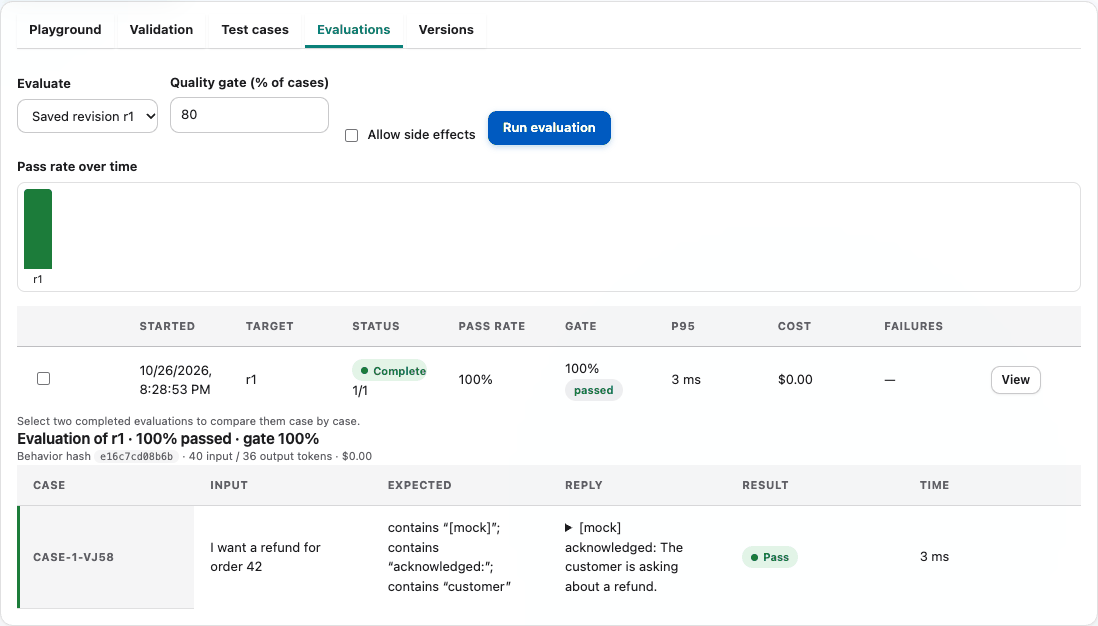
- In Evaluations, choose the saved revision or a published version, set the quality gate (the percentage of cases that must pass), and select Run evaluation. Cases run one at a time in the runner.
- The table shows the pass rate, whether the gate passed, P95 latency, cost and failure reasons. Select View to see each case's reply and the assertion it failed. Select two evaluations, then Compare selected, to see which cases were fixed or regressed and how pass rate, latency and cost changed.
Judged metrics, tool accuracy and slices
- Judge criteria asks the runner's model to score the reply from 0 to 1 for
groundedness (against the text the run retrieved), task completion (optionally
against a reference answer), relevance and safety. A score below Min score
(default 0.7) fails the case. If the judge cannot score, for example under the
mockmodel used when no provider key is set, the case fails withjudge_unavailableinstead of passing. Each result records the judge model and rubric version, and its reasons appear when you hover over a score. - Must call lists tool or API node IDs that must complete; the evaluation reports tool accuracy.
- Tags group cases. The case detail shows a heat table of pass rate and mean judge scores per tag.
- Review records a person's verdict on a case (accept, needs changes or reject) with a note. Reviews annotate results; they do not change the gate.
A judge is itself a model, so spot-check judged results. Kionga treats the evaluated reply as data, not instructions, but a reply can still try to sway its score.
Every evaluation stores a copy of its cases, so you can reproduce it later. The newest 20 evaluations per design are kept, along with any evaluation a published version cites.
7. Publish, deploy, canary, monitor and roll back
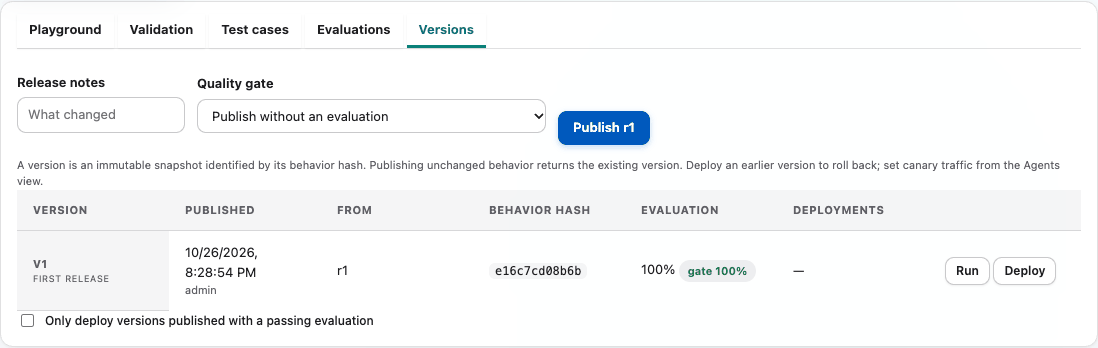
- In Versions, select Publish. A version is an immutable snapshot that records the saved graph, a behavior hash, the component registry version, the source revision and you as the author.
- To gate the release, choose a passing evaluation of this exact revision under Quality gate. Kionga refuses the evaluation if it did not pass or if it tested different behavior.
- Moving nodes or renaming them does not change behavior. Publishing again without other changes returns the existing version.
-
Run on a version executes it independently of the draft.
-
Deploy creates a managed agent on the Kubernetes agent runtime. Kionga mounts the version read-only, and the runtime refuses to start if the behavior hash does not match. To require a passing evaluation at deploy time, select Only deploy versions published with a passing evaluation. In the local Compose profile, Deploy reports that a managed runtime is required; use Run on the version instead.
- Watch the deployment in the Operations tab. Pick a deployment and a window (1 hour to 7 days) to see status, requests, success rate, P95, tokens and cost. The tab charts requests, errors, latency (P50/P95/P99) and cost, and lists the rollout timeline across the design's deployments and the recent turns. Set the canary weight there. A window without traffic says so instead of showing zeros.
- To roll back, deploy an earlier version.
The metric cards at the top of the designer count designs, published versions, deployments, runs over the last 24 hours, success rate, P95 latency and cost. Each value comes from stored runs. A window with no runs shows a dash instead of a number.
Automate with the Python SDK
from mlaiops_sdk import MLAIOpsClient

client = MLAIOpsClient()
template = next(t for t in client.agent_designer_templates() if t["id"] == "structured-extraction")
design = client.create_agent_design("prj-demo", "Order extractor", template["graph"])
run = client.run_agent_design(design["id"], "Ada wants order 42 refunded")
print(run["status"], run["output"])

cases = [{"id": "order", "input": "Grace needs order 7 cancelled", "expected": {"contains": ["7"]}}]
fixtures = client.get_agent_test_cases(design["id"])
client.save_agent_test_cases(design["id"], cases, revision=fixtures["revision"])
evaluation = client.evaluate_agent_design(design["id"], gate=0.9)
version = client.publish_agent_design(design["id"], design["revision"], evaluation_id=evaluation["id"])
client.deploy_agent_version(version["id"], require_evaluation=True)
See the Agent graph reference for schemas, components, API routes, limits and security.